Homework
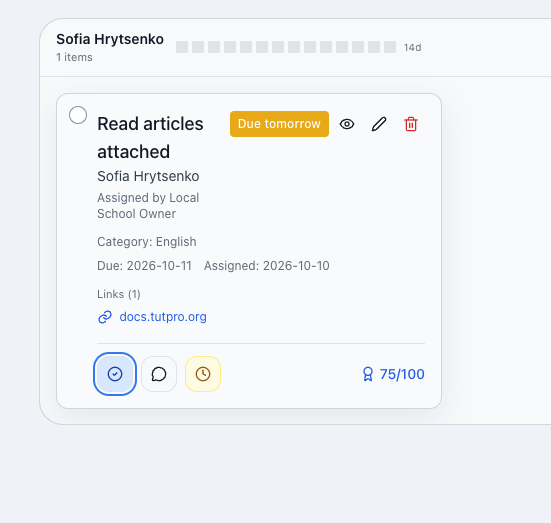
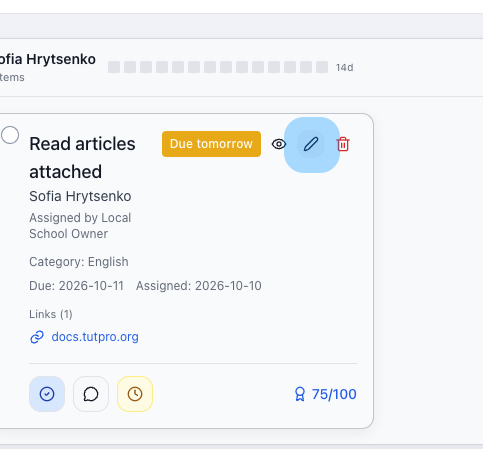
Open Homework and choose a course or discipline if the app asks. Select a task to read the full instructions, due date, attachments, and submission rules.
Before starting, confirm that the task is assigned to the correct course and read the whole instruction before uploading or typing. Open each file or link once; check the due date and permitted submission method so you can prepare the right work.
Submit your work
- Read the task and open any links or attached files.
- Enter your response or upload the requested work using the available controls.
- Check that the file or text appears in the submission area.
- Choose Submit and wait for the confirmation.
- Reopen the task to confirm its status.
If a task allows both a link and an image, choose the option that best shows your work. Wait for the upload or save indicator to finish before leaving the page. If the status does not change after submission, reopen the same task and check whether your response is already there before sending it again.
If the task allows a Decks or Assess attachment, open the dedicated product action rather than submitting a plain URL. After submitting, return later to read the teacher’s grade and feedback.