School administration overview
School features are available in the Teacher app’s Administration area according to your school role and capabilities. The separate Schools console is a narrower, read-only schedule and audit dashboard for an assigned school.
Choose the right surface
- Use Teacher → Administration to manage school settings, staff, roles, students, campuses, resources, finances, reporting, and school communications.
- Use the Schools console to view the assigned school schedule and, when permitted, its audit log. It has refresh and pagination controls and does not provide the full administration tools.
- Use the regular Teacher pages for teaching work such as a lesson, homework task, grading, or a student profile.
Recommended setup order
- Create or open the school workspace.
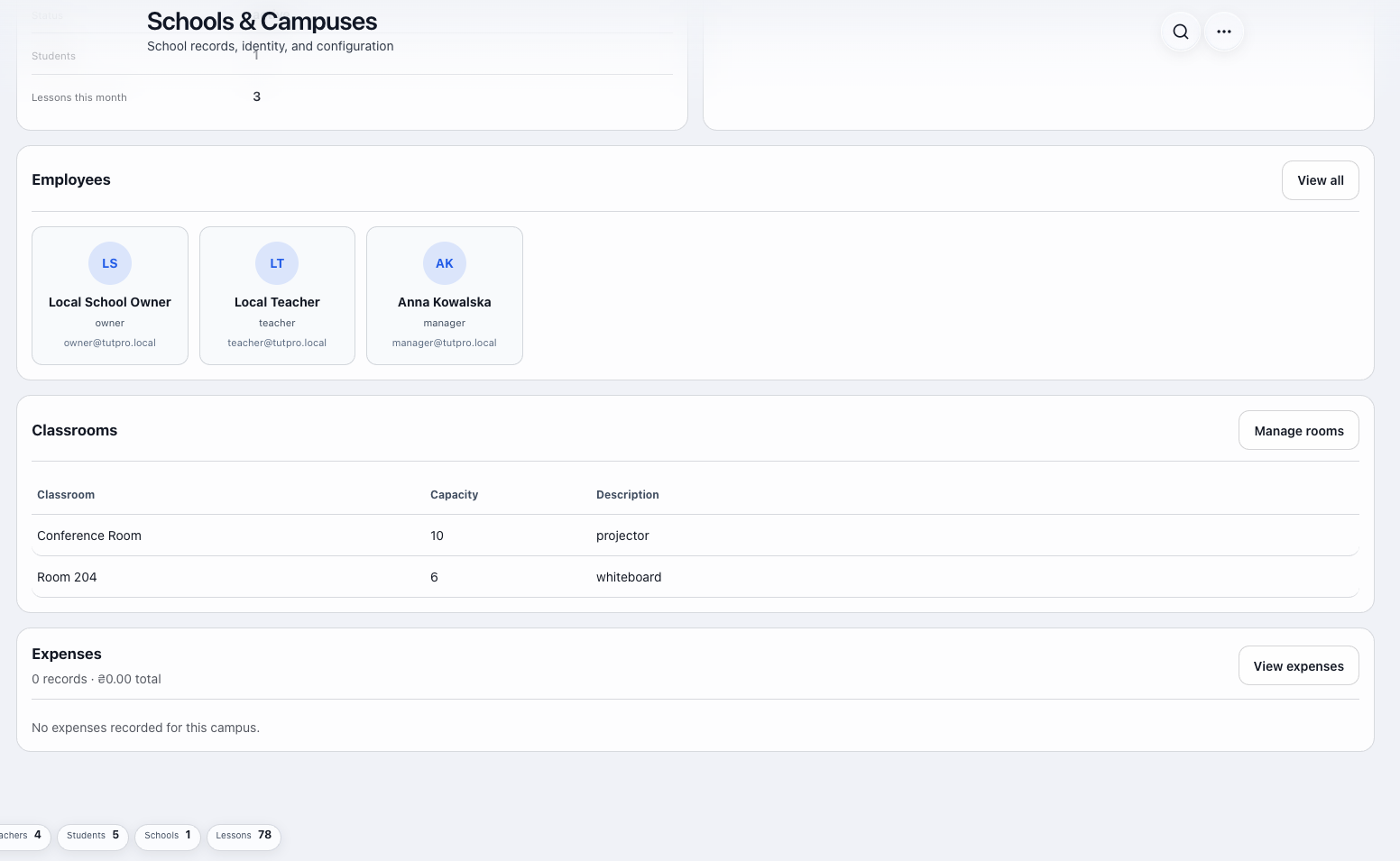
- Add campuses, rooms, and equipment.
- Invite staff with the least access needed for their role.
- Add students and assign teacher/campus ownership.
- Set schedule and pricing defaults.
- Review finance, communications, certificates, reports, and audit settings.
An owner’s access is school-wide. Other roles are limited by their permissions and campus scope. A menu item being visible does not guarantee that every record can be edited; the server checks access when an action is saved.