Dashboard, navigation, and settings
The dashboard summarizes today’s lessons, active students, homework needing attention, and other workspace activity. Use the left navigation to open the main work areas. Depending on your workspace, More contains additional pages such as Grading, Forms, Feed, Reports, Administration, and Settings.
Search and quick actions
- Use the search control to find a student or record by name or identifier.
- Use + for common create actions. The available options depend on the page and your permissions.
- Use the overflow menu for page actions and view choices.
- Open the workspace switcher to move between your personal workspace and a school where you have access.
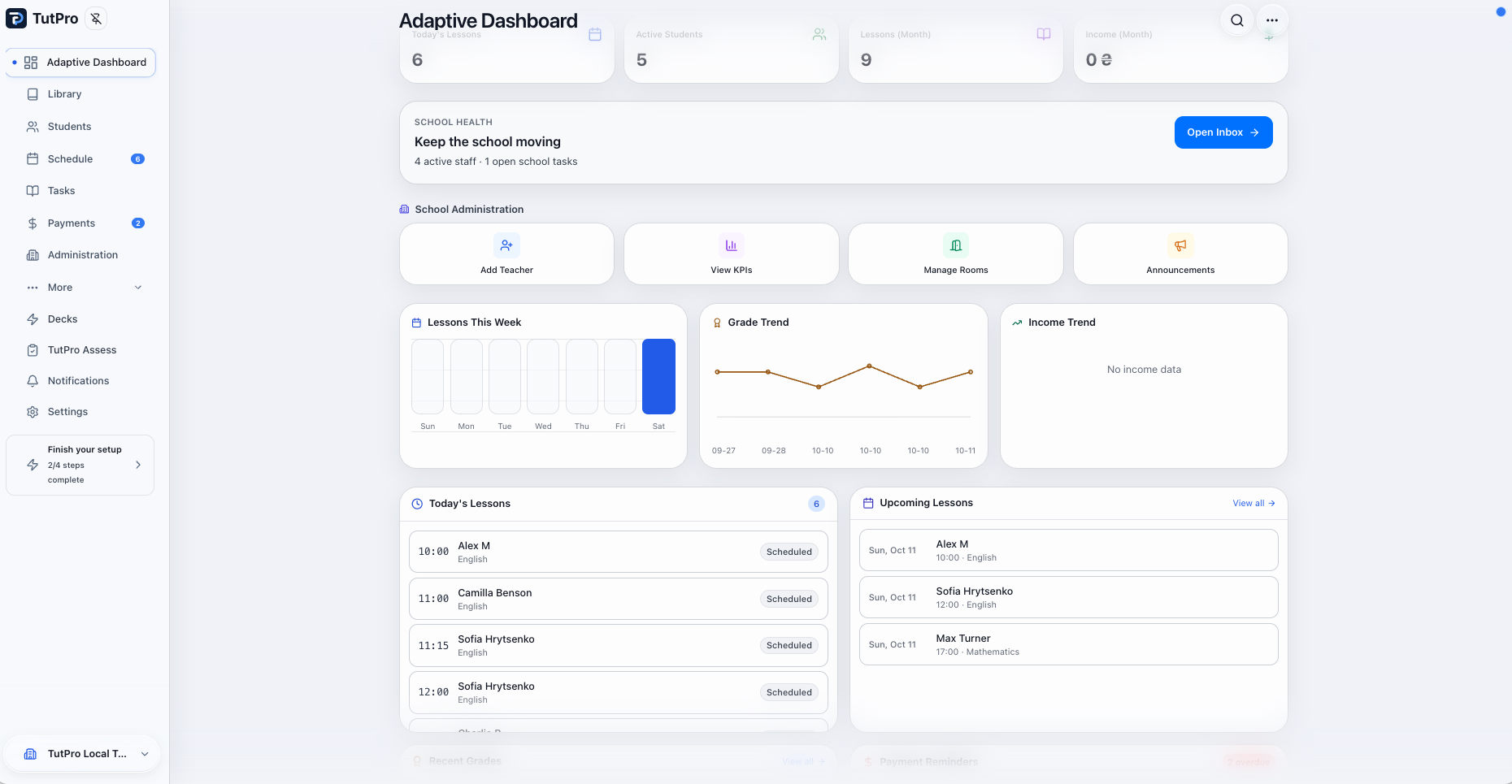
Teacher dashboard with today’s schedule, tasks, and workspace metrics. · Click outside to close
Settings and quick actions
Open Settings to review your profile, working hours, lesson defaults, pricing, language, appearance, connected apps, and notification preferences. Some settings appear only for users whose role allows them.
Changes made in a panel are usually drafts until you choose Save. If a page supports keyboard shortcuts, its help text lists them; common panel controls include Esc to close and ⌘/Ctrl+S to save.
Sync and recovery
TutPro keeps local state for responsive editing and synchronizes supported records when connected. Check the sync indicator if recent edits do not appear across devices. Use the app’s backup and restore controls to export or recover your own workspace data. Do not send backup files to support unless they have been reviewed and approved for sharing.
A successful local save does not prove that a record has reached the remote service. Confirm the sync state before switching devices or relying on another app to show the latest change.