Teacher assignments
Teachers can manage decks and assign them to a student, group, or course depending on the workspace integration.
Create an assignment
- Open Teacher → Tasks and start a new assignment, or open the intended student/group record.
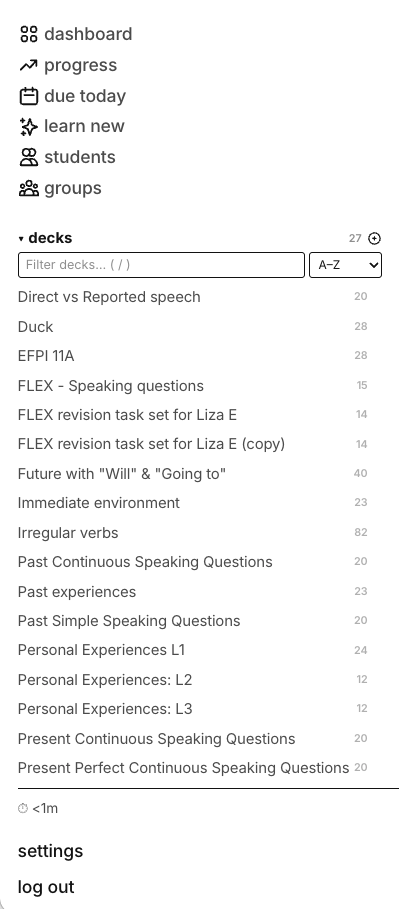
- Choose Add deck or Assign deck in the assignment attachments.
- Select the deck. Check its title and content so you attach the intended set of cards.
- Select the student, group, or course. Confirm the provider workspace and recipient before saving.
- Set a due date and any study requirements the assignment form offers.
- Review the student-facing title, recipient, deck, and dates, then save the assignment.
- Reopen the saved task and check that the deck attachment is present. Students open the work from Student so activity stays linked to the assignment.
Decks assignments remain a distinct attachment type. Confirm the learner is in the correct provider workspace before assigning.
Review student progress
- Open the saved assignment in Teacher → Tasks or open the assigned student/group record.
- Select the deck assignment or card progress action to view completion and card-level activity.
- For a group assignment, review each learner in the group view and note who has not started, is in progress, or has completed the work.
- Open a learner’s card browser when you need to see which cards need more practice.
- If the assignment or progress is missing, confirm the student account and provider connection before creating a duplicate.