AutoCheck tutorial
AutoCheck supports a paper-workflow alongside an assessment. Start with an assessment whose questions and answer key are complete, then open its Check PDFs action.
Prepare the assessment
- Confirm the assessment’s title, question order, point values, and correct answers.
- Download the printable PDF and check that its questions and layout are readable.
- Have students identify their paper using the entry details required by your workflow.
For AutoCheck, export the Checkable student handout so the paper is connected to its assessment template. Keep that copy with the matching class and do not mix it with a different assessment version. Ordinary student handouts are suitable for printing but are not the template-registration step.
Open Check PDFs
From the assessment builder choose Check PDFs. Follow the on-screen upload prompts for the scanned student work. Use a clear, upright scan with all pages visible; keep one student’s work together and avoid combining different students into one file unless the screen explicitly supports batch processing.
Before upload, count the pages and check the first and last page of each scan. If a page is cut off, rotated, or faint, rescan it before processing. If the app asks you to identify the learner or assessment, compare the selected record with the paper header before continuing.
Review the check
Compare the detected student/attempt and extracted answers with the original scan. Inspect every uncertain or partially correct response. Correct the suggested score where necessary, then save or submit the reviewed result using the controls shown.
Work through the review in order: confirm the student and assessment, compare each answer with its page crop, resolve uncertain or unreadable marks, adjust partial credit against your rubric, and save the reviewed result. Reopen the response afterward and confirm that the final score is attached to the intended student before publishing it.
AutoCheck results are suggestions for teacher review. Poor scans, handwriting, page order, or ambiguous answers can affect recognition. Confirm scoring against the rubric before publishing results.
Review local processing and evidence settings
The AutoCheck settings surface includes an on-device handwriting model and controls for exporting or restoring local evidence. The screen indicates that response marks can be checked on-device and that handwriting recognition uses a local model; available model and language options can vary by build and device. Keep the browser profile intact until the review is complete, and use the evidence backup before clearing browser data or moving to another device. Follow the current in-app privacy and storage explanation for the exact data path.
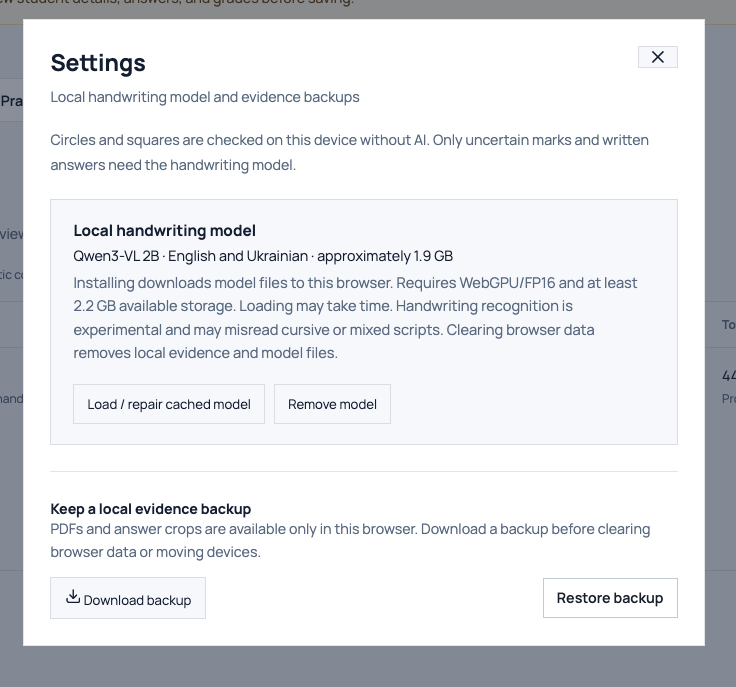
AutoCheck settings for on-device handwriting recognition and evidence backup. · Click outside to close