Builder
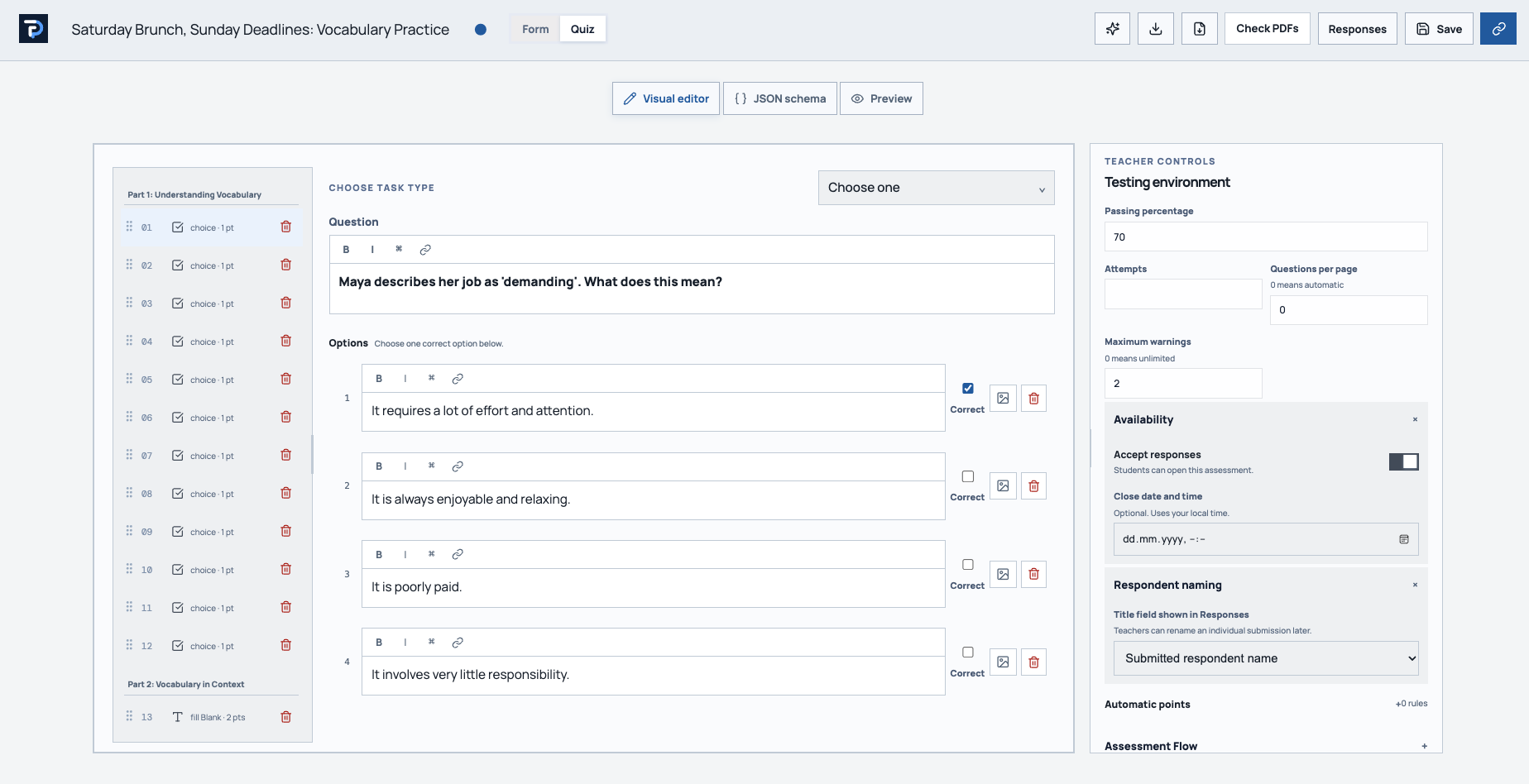
Open the assessment library and choose an assessment to edit. The builder keeps the question list beside the selected item’s editor. Set a title and choose Form or Quiz for the response workflow.
Add and organize content
Choose Add group to add a section and Add question to insert a question. Select a question to edit its prompt and options. Drag its handle to reorder it. Use the question list to select a different item or section.
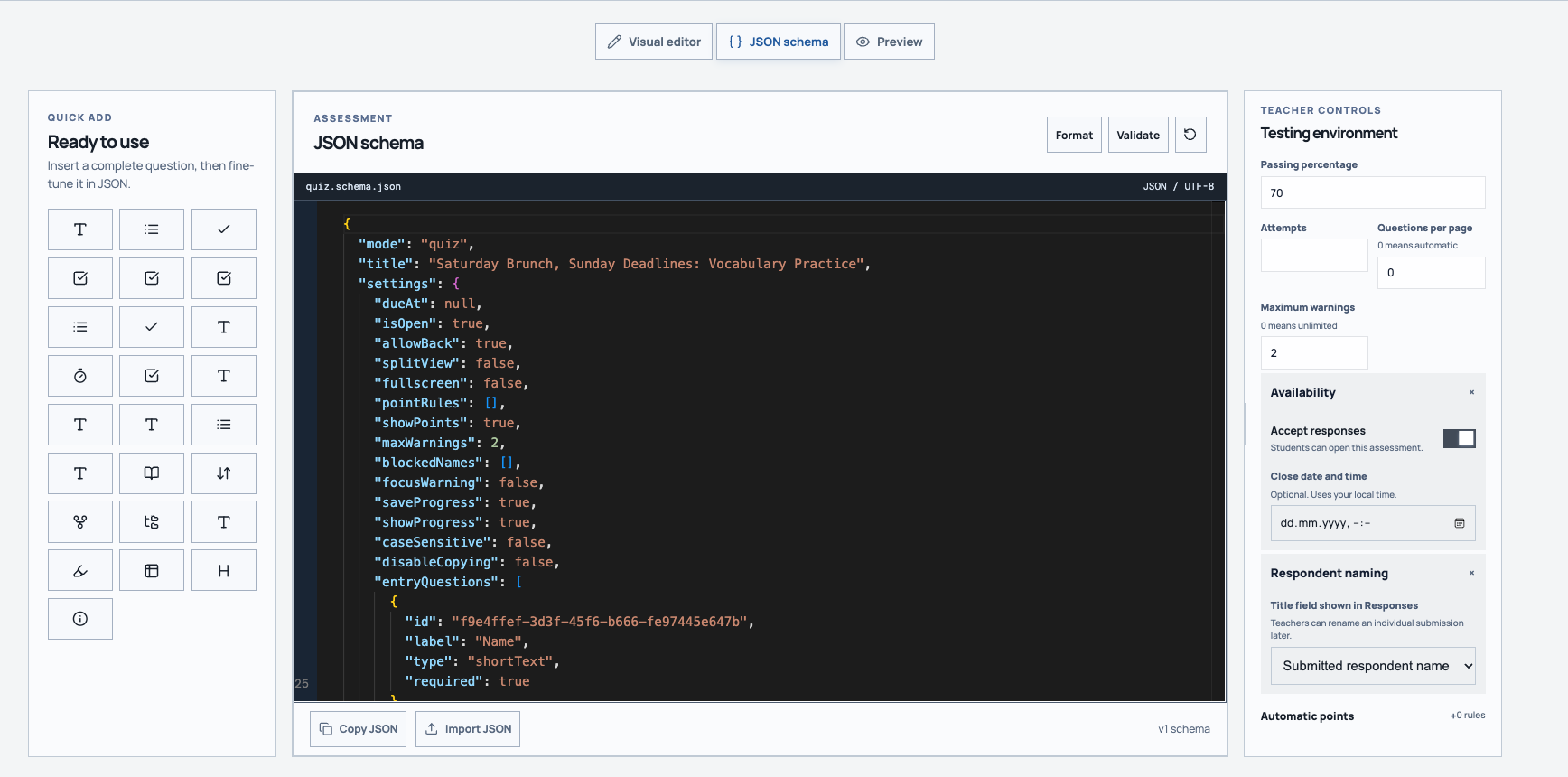
The visual editor provides rich-text formatting, links, and media controls where available. JSON schema switches to the structured representation for advanced edits. Reopen the visual editor and preview after changing JSON.
 123
- Preview the student experience
- Check PDFs for paper workflows
- Save your draft
Show focused crop · Builder actions close-up
123Desktop quiz builder with question list, visual editor, and Teacher Controls. · Click outside to close
The schema editor includes quick-add question templates and validation controls. Treat the JSON as the assessment source: make a backup before direct edits, validate the structure, then switch back to Preview and check the student-facing result.
 123
- Switch to JSON schema
- Validate the schema
- Import or copy JSON
Show focused crop · Schema validation controls close-up
123Desktop JSON schema editor with quick-add question types and validation. · Click outside to close
Save and publish
Use Save draft while editing and wait for the saved status. Use Preview to inspect the student view. When ready, choose Publish and copy link. Download JSON for a structured backup or a printable PDF for paper use.
Before sharing, check that the assessment is open for responses, the close time and attempt rules are intentional, and result visibility matches your plan. Copy the link only after the save completes. Open Preview once more to check the entry questions, reference sheets, question order, and finish screen. For a Teacher assignment, open the homework flow, choose the Assess attachment, select the intended assessment and learner or group, then confirm the assignment details in Teacher.
After publishing, share the link or code privately with the intended class. Confirm the code and full URL are not being confused, and keep the teacher answer key in a staff-only channel. Review the first incoming response in Responses before releasing results to the class.