Printable PDFs
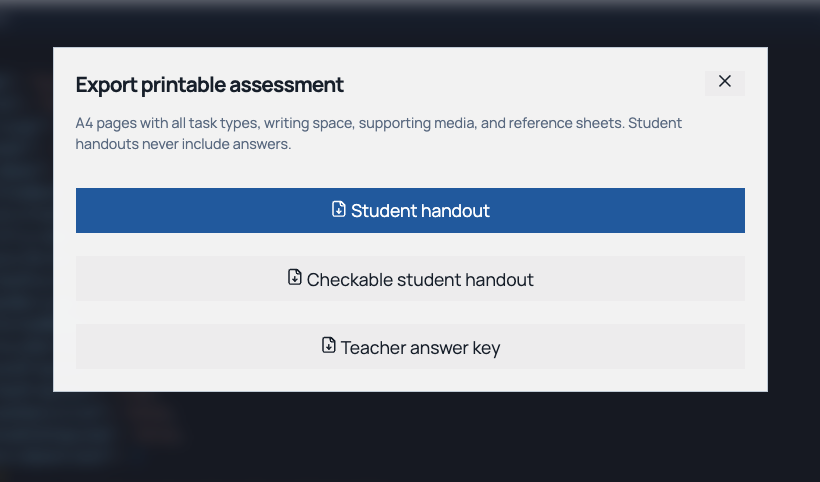
Open the assessment builder and choose the printable PDF action. The export dialog offers three outputs. Choose based on how the paper will be used; the student-facing outputs do not include answers.
 123
- Choose a student handout
- Choose a checkable handout for AutoCheck
- Keep the teacher answer key private
Show focused crop · Export choices close-up
123Printable assessment export dialog showing student handout, checkable handout, and teacher answer key. · Click outside to close
Student handout
Choose Student handout for a normal paper assessment. The PDF is designed for A4 and includes writing space, supporting media, and reference sheets where applicable. It does not include the answer key. Print a copy and confirm that the text, diagrams, and response areas are legible before distributing a full class set.
Checkable student handout
Choose Checkable student handout only when you plan to process the returned pages with AutoCheck. This explicit action registers a template for matching the scanned paper to the assessment. Standard student handouts and answer keys are generated locally; checkable export is the opt-in step that uses the AutoCheck registration workflow.
Give each learner the correct handout and ask them to keep all pages together. For scanning, keep pages upright and in order, with all marks and written responses visible. See AutoCheck tutorial for upload and teacher review.
Teacher answer key
Choose Teacher answer key for the private marking copy. Store and share it only with staff who need it. Before distributing student PDFs, reopen the selected export action and confirm you are not sharing the answer key.
After exporting
Check the output against the assessment preview. If you edit questions, answer keys, or reference sheets later, export a fresh copy so the printed version matches the version students are taking. For integrity guidance on controlling answer reveal and reducing answer sharing, see Academic integrity.