Import, export, and recovery
Use the workspace data tools to import supported spreadsheets or export a backup. Import and export availability depends on your role and selected workspace.
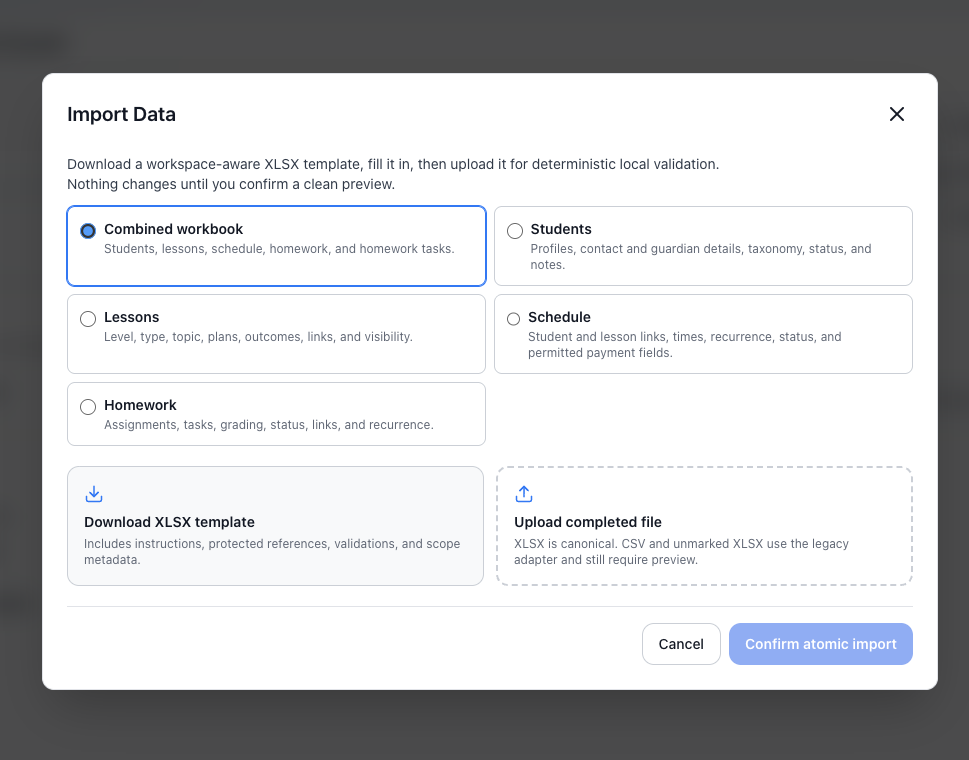
Import records
- Select the intended workspace and open the import tool.
- Choose a supported file and review the detected sheets and field mapping.
- Resolve missing required fields and inspect the preview for duplicates or incorrect ownership.
- Confirm the import only after reviewing the record count and target.
- Reopen a sample student, lesson, and task to confirm the imported data.
Export a backup
Choose the intended data scope, then export. Keep the file in private storage; it can contain student and financial records. Use an encrypted location and restrict access to people authorized for the workspace.
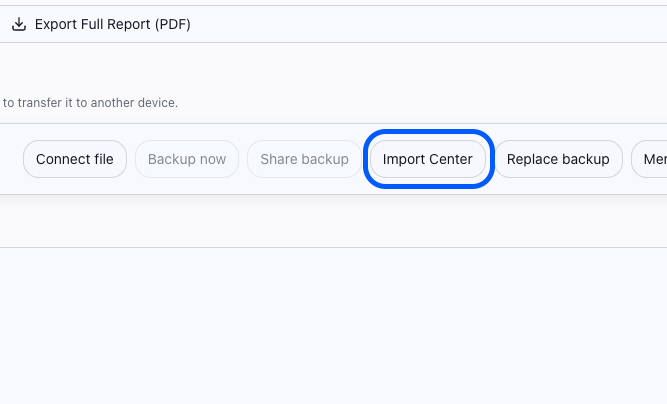
Restore or migrate
Follow the import tool’s supported restore format. Do not restore a personal backup into a school workspace unless the source, ownership, and sharing scope have been reviewed.