Tasks
Tasks is the workspace for assigning and tracking work. Open it to review active and completed homework, check due dates, and open an assignment.
Use the task list as the handoff point between preparing, assigning, and reviewing work. A typical cycle is: draft the instructions, preview the student version, assign it, check whether the learner opened or submitted it, then grade and return feedback.
Find and manage an assignment
- Open Tasks in the Teacher navigation.
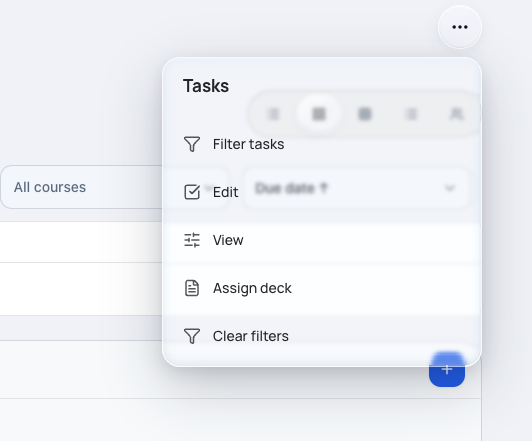
- Use the available status, student, or date filters to narrow the list.
- Open an assignment to see its instructions, attachment, due date, and submission status.
- Create a new assignment with Create homework, or update an existing one with Edit homework.
- Open Grading to review submissions and return feedback.
Keep the assignment instructions and due date clear. When an assignment is linked to a lesson, confirm the intended student or group before saving.
After opening an assignment, check the status before taking action. An Assigned item still needs student work; a submitted item belongs in the review flow; a completed item may only need a final check or follow-up. If a task seems missing, clear filters and confirm the active course, workspace, student, and date range before creating another assignment.
Use Create homework to start new work, Edit homework to correct a saved task, and Grading to review completed submissions. Reopen the task after each save to confirm the status and next action changed as expected.
 1
- Choose Filter tasks
Show focused crop · Task filter menu close-up