Edit and reschedule a lesson
Open a lesson from Schedule, the student profile, or its detail link, then choose Edit. The editor shows the saved date, time, duration, participants, and other fields.
Before changing anything, verify the lesson title, student or group, current date, and status. For recurring lessons, confirm whether you opened one occurrence or the series; do not rely on the date alone to identify the edit scope.
Change a lesson
- Open the specific lesson occurrence you want to change.
- Update its date or start time and review the campus time zone.
- Review the student or group, duration, room, teacher, lesson status, and price.
- Update the topic or notes if needed, then save.
- Return to the calendar and confirm the lesson appears on the intended day and time.
For a one-off change, edit that occurrence. If using a recurring series control, read the selected scope before saving; a series edit may affect more than one date. Dragging a card moves the selected occurrence when drag-and-drop is available. Always verify the resulting date in the calendar.
After saving, check the updated card in both the intended day and the week view. Reopen its details to verify the time zone, room, participants, and price. If students or staff rely on the old time, send the update through the school’s normal communication channel.
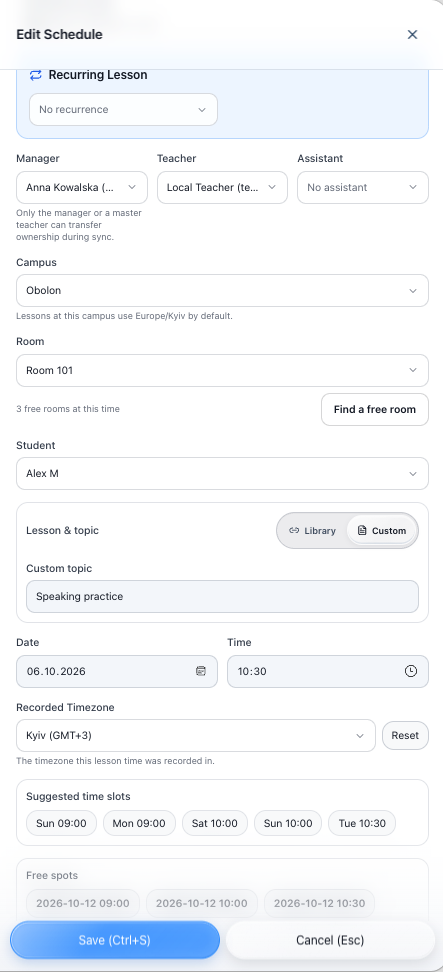 1
- Save the change
Show focused crop · Save control close-up
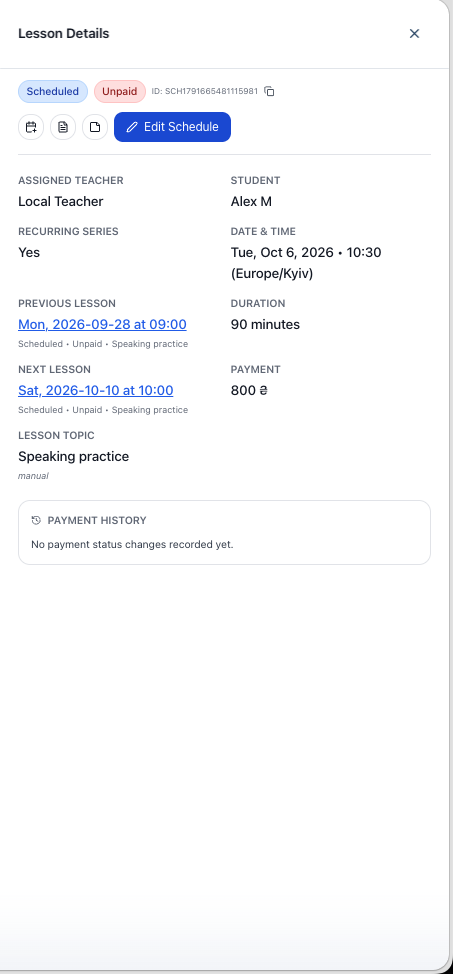
Lesson detail view with date, time, participant, and recurrence information. · Click outside to close
Resolve conflicts
Check the schedule for another lesson at that time, teacher availability, room occupancy, and campus scope. In school mode, confirm that the selected room belongs to the campus and that the teacher can use that campus. A conflict warning should be resolved before confirming the change.
Change a group lesson
Open the group lesson itself. Review the current roster and attendance/payment details before changing the time or participants. If the lesson has already happened, avoid changing historical details to fix a future schedule.
If a lesson appears on the wrong day
Reopen the exact occurrence and inspect its date field, not only the displayed time. Save and return to the same week/day view. Check filters, time zone, and campus before repeating the edit.