Edit, review, and grade homework
Open Tasks and select the saved homework item. The detail panel shows its instructions, target, due date, attachments, status, and any submitted work.
Use the task detail to orient yourself before editing: check which learner owns the task, whether it is assigned or already submitted, and whether a grade or feedback has been saved. If you opened it from a notification, compare its title and due date with the record in Tasks.
Edit the task
- Check the student/group and task status before changing content.
- Update the title, instructions, dates, links, files, images, task items, or submission method.
- If editing a recurring sequence, confirm whether the edit applies to one assignment or multiple occurrences.
- Save and reopen the task to confirm the updated student-facing version.
If the student has already submitted work, preserve the original instructions where possible and explain material changes in the feedback or a separate message.
After an edit, reopen the task and inspect its student-facing view. Check attached Decks or Assess items individually, then verify the saved due date and task status. If the task is part of a recurring sequence, confirm which occurrence changed before moving on.
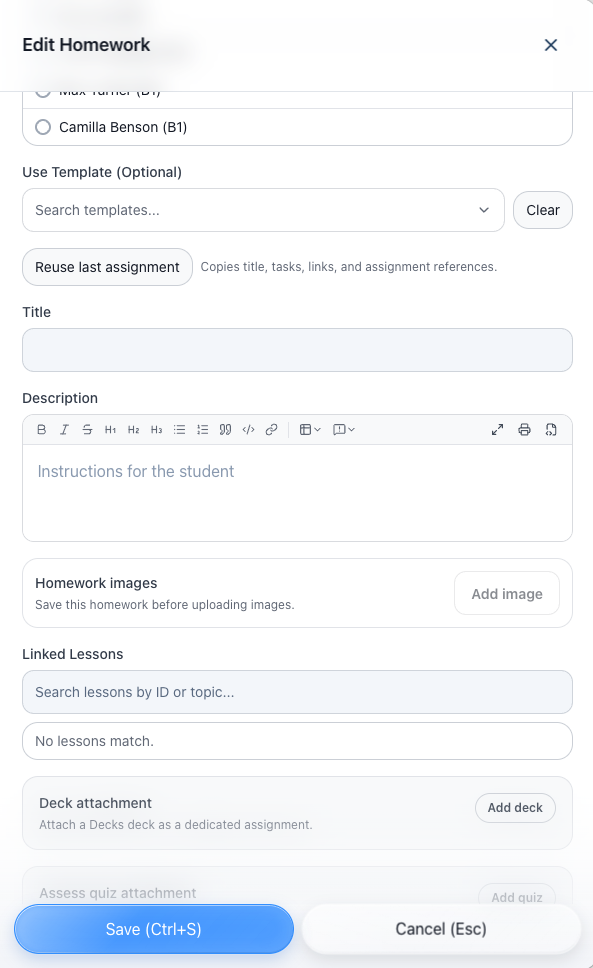 123
- Enter the assignment title
- Write student-facing instructions
- Save before adding images
Show focused crop · Title and instructions close-up
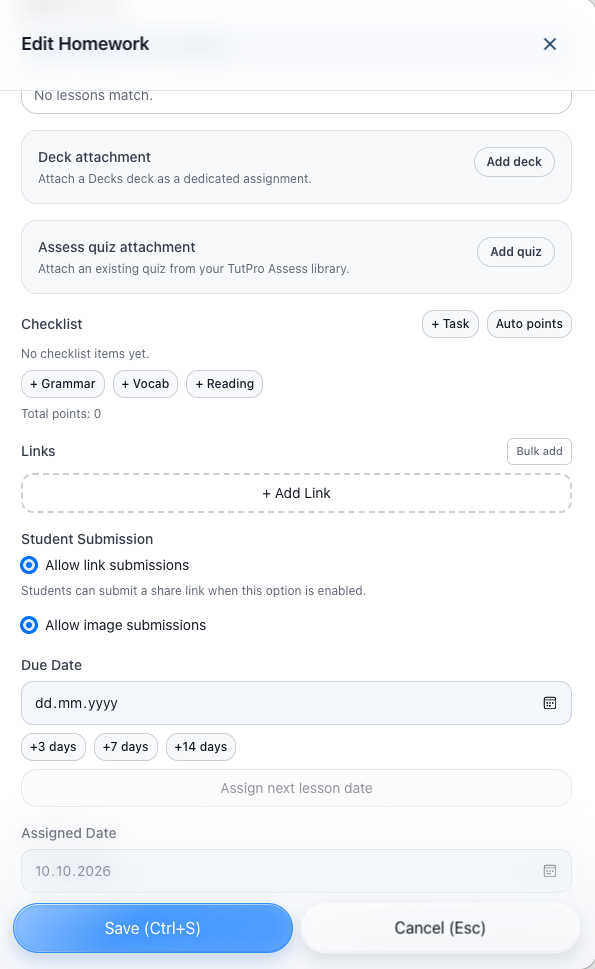 1234
- Attach a Decks assignment
- Attach an Assess quiz
- Set and verify the due date
- Save the assignment
Show focused crop · Attachment controls close-up
Review a submission
Open the submission from the task or Grading queue. Read the full response and open attachments before grading. Mark the task complete or update its status using the available workflow.
Add a grade and feedback
Enter the score and check it against the maximum grade. Add feedback that identifies what was successful and what the student should try next. Save, then confirm the grade and feedback appear on the task. Bulk grading is available in the Grading page for compatible items; check the selected students and values before applying.
Before saving, compare the submission with the requested task and its rubric. After saving, return to the submission and verify the score, feedback, and progress-tracking state. If results must be discussed before they are final, record that step in the available progress control rather than treating the saved grade as a conversation that already happened.
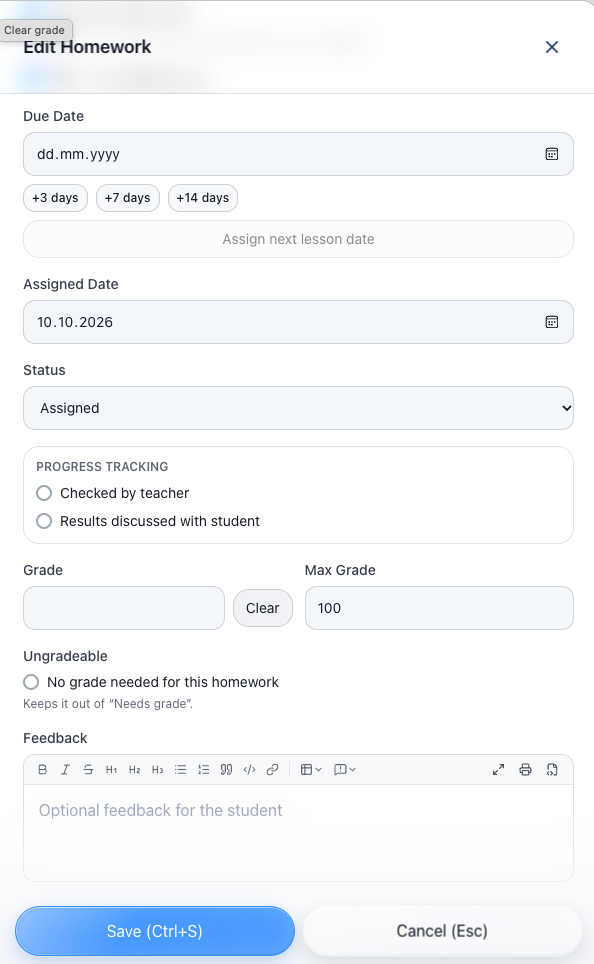 123
- Enter the grade
- Write feedback
- Save the grade and feedback
Show focused crop · Grade and feedback close-up
Handle missing or ungradable work
Use the status and grade controls to distinguish work that is missing, not submitted, or not gradable. Do not enter a zero merely to clear a queue unless that matches your grading policy.