Campuses, rooms, and equipment
Open Administration → Schools & Campuses or the Campus and classroom setup action. A campus page contains its rooms, contacts, pricing, and resource details.
Add a campus
Enter a campus name and time zone. Save, then open the campus page and confirm the location details. Lessons use the campus time zone by default where configured.
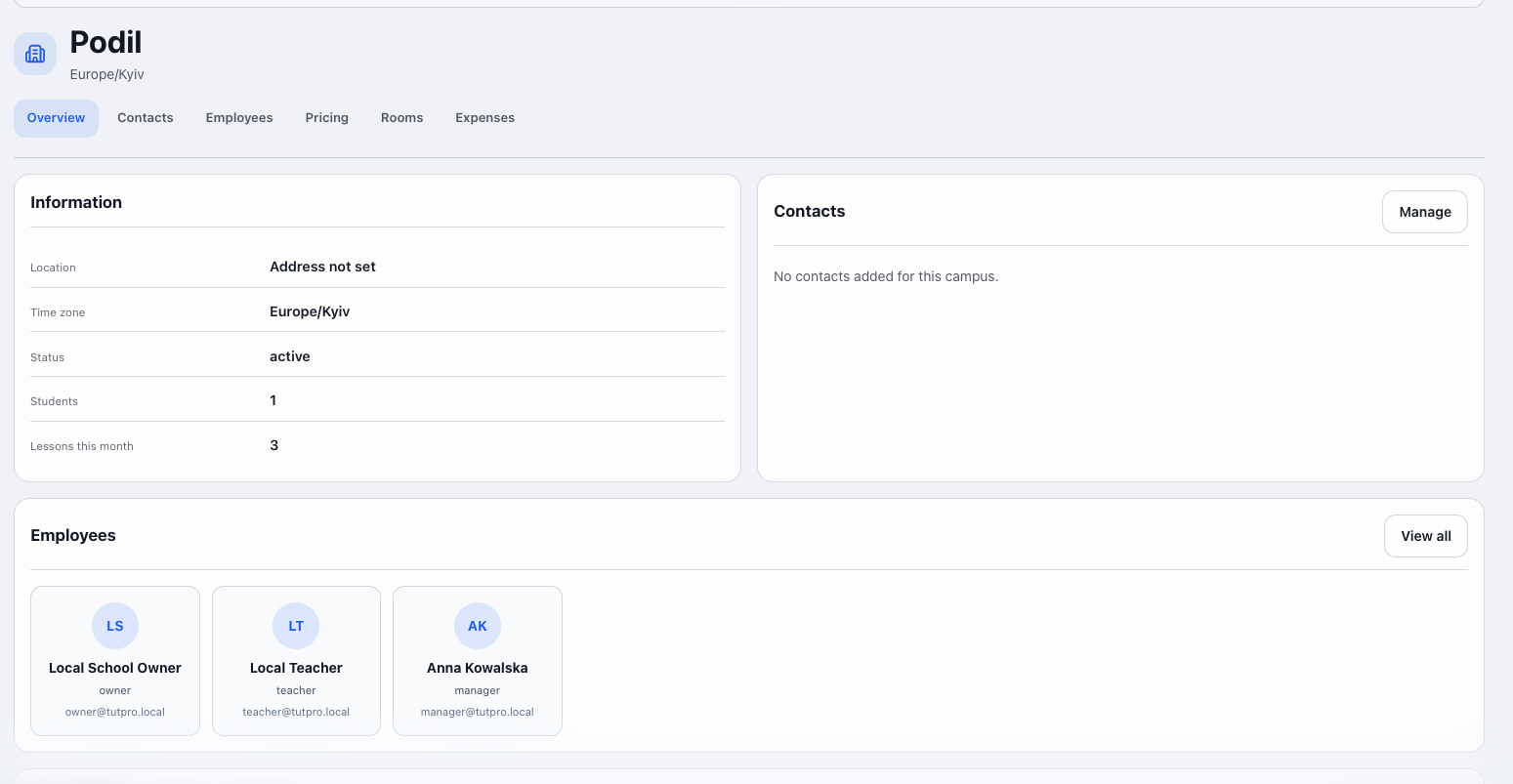
Campus overview with contacts, employees, pricing, rooms, and expenses. · Click outside to close
Add rooms and equipment
- Open the campus and choose Add room.
- Enter the room name and seating capacity.
- Add equipment items from the school’s equipment categories.
- Save and check the room in the resource schedule.
If you have an existing room without a campus, assign it to the correct campus before using it for new lessons. Room edits do not rewrite historical lesson details.
Find a free room
In Administration → Schedule, choose the room/vacancy view. Set the time range, campus, student count, and equipment requirements. Confirm the room is free for the full duration, then use Book lesson to open the schedule editor.