School schedule and room planning
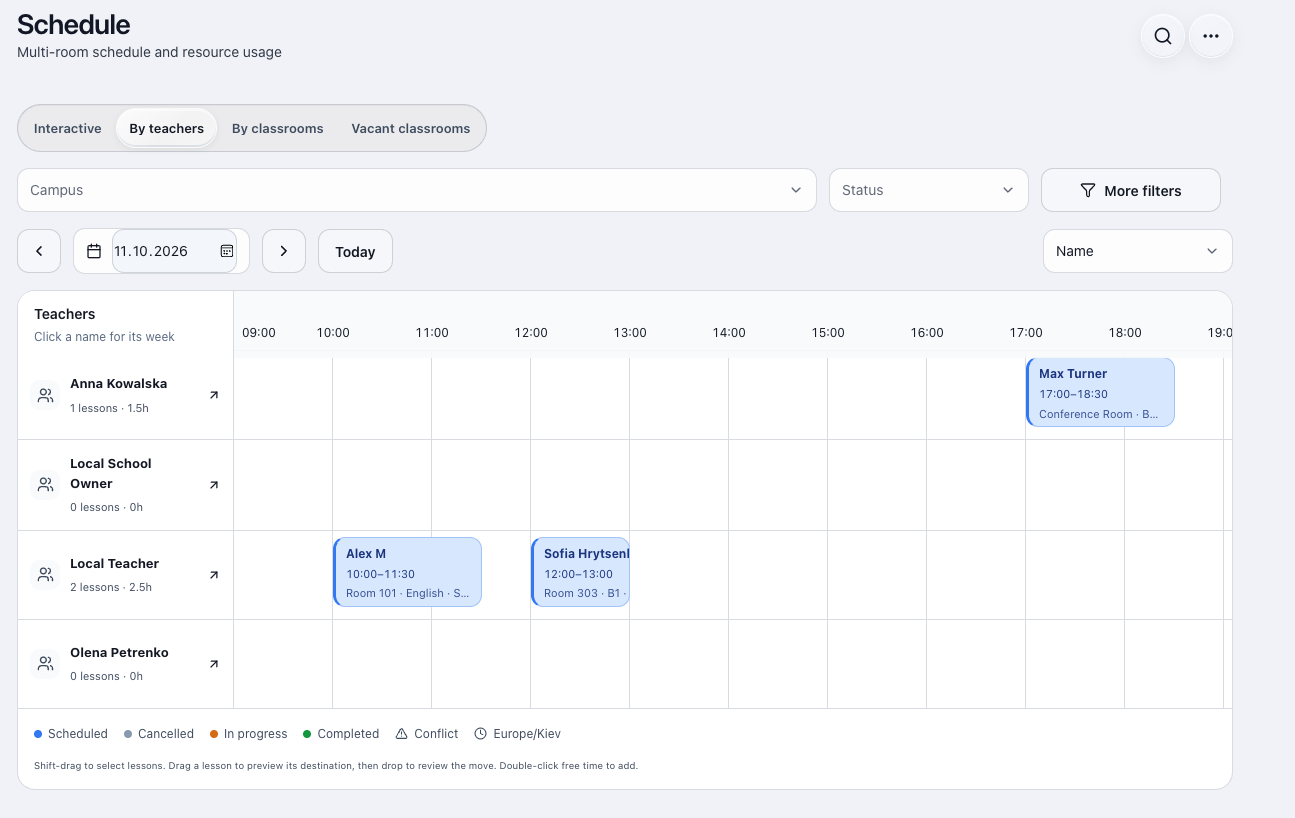
Open Administration → Schedule to inspect school lessons by date and resource. Choose a teacher or room view, select a campus, and move through the day or week.
Find schedule conflicts
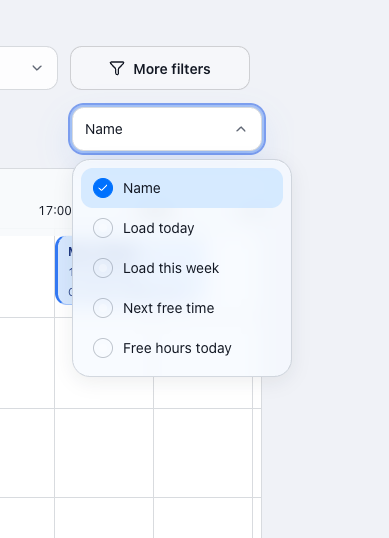
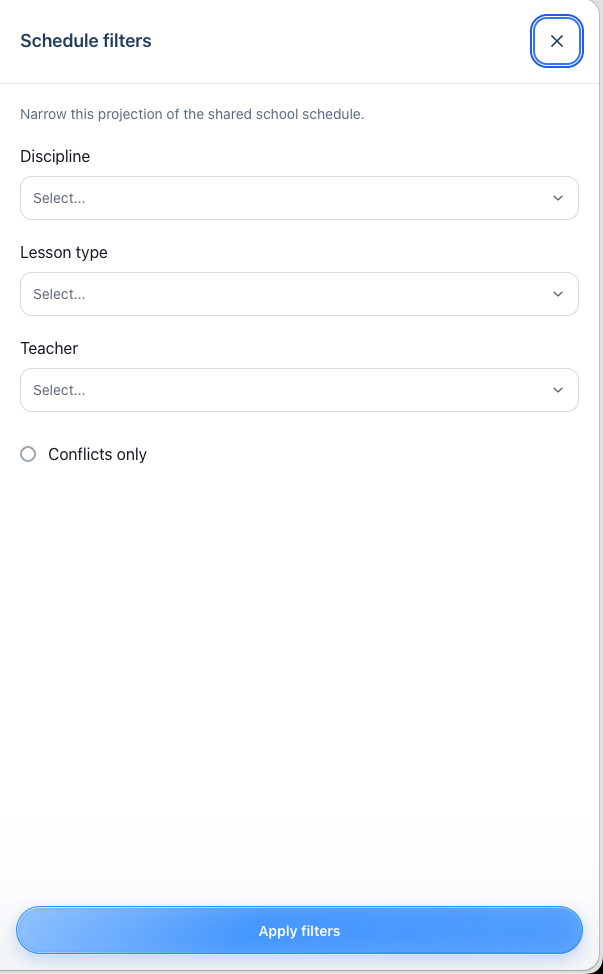
Review lessons and resource use for the chosen date. Check teacher availability, campus time zones, room occupancy, and group size. Use filters to isolate a campus or resource when the view is busy.
Find an available room
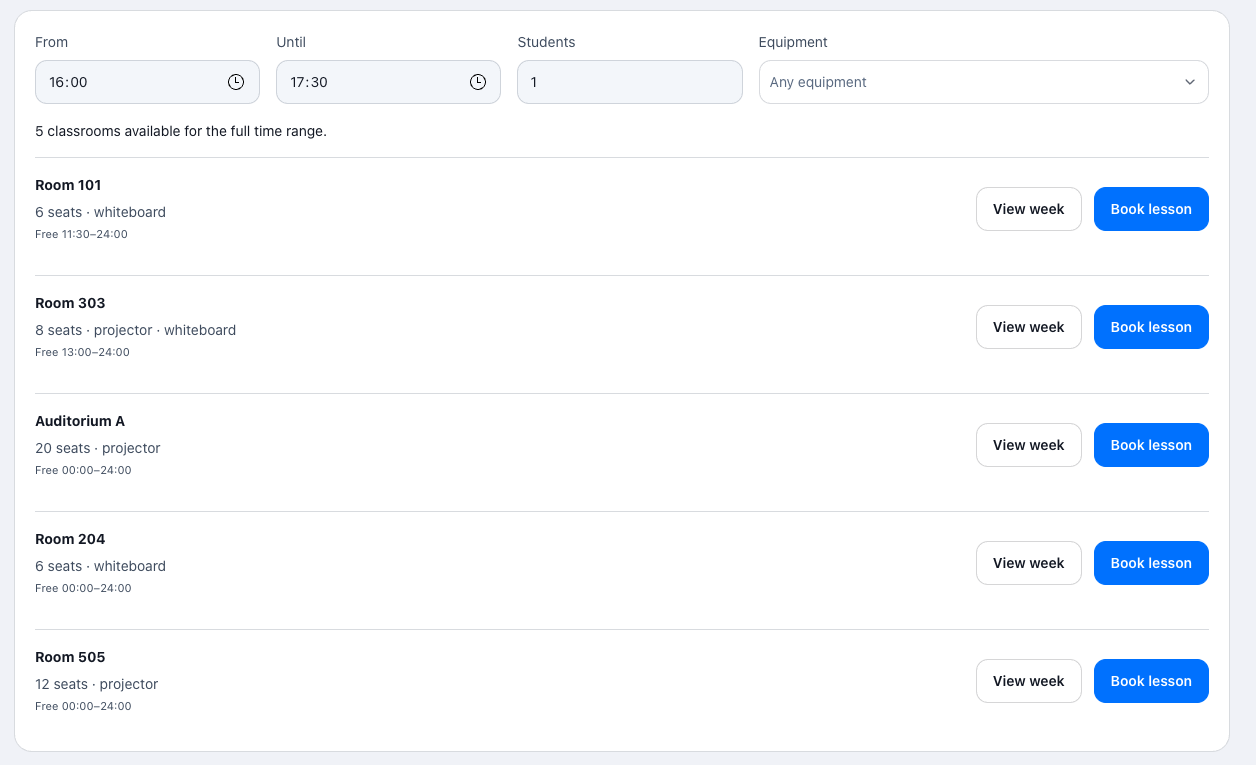
Open the vacancy finder, enter the time range and group size, and choose equipment requirements. TutPro lists rooms available for the full interval. Open a room’s week view to inspect nearby bookings.
Book a lesson
Choose Book lesson on a free room result. The schedule editor opens with the selected time and room. Complete the student/group and teaching details, then save and confirm the event appears in the resource schedule.
Move an existing lesson
Open the lesson and edit its date, time, teacher, room, or campus. Review conflicts again after saving. If a resource is under maintenance, block the affected period so it is not suggested as available.